
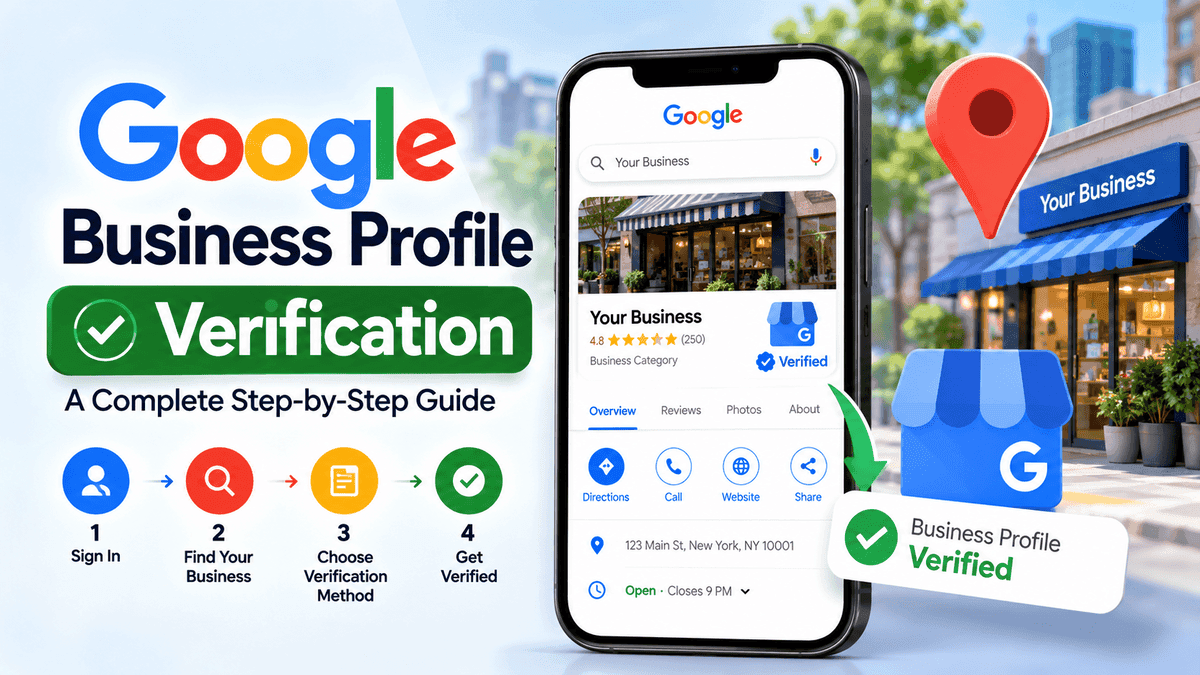
How to verify your Google Business Profile is mostly a matter of following the flow Google shows: sign in to the account that manages the listing, select Get verified and finish the method offered, whether a call, text, email, postcard, video recording or live video call. Google chooses the methods itself, so the list on screen depends on the business. Skip verification and the listing stays locked, with no edits and no customer replies. Ahead: the steps in order, how each method works, what a verification video must show, and what to try when something fails.
Quick Answer: How Do You Verify Your Google Business Profile?
- Open the Google Account that owns or manages the business.
- Search for the profile. If it is missing, add the business or claim it.
- Confirm the name, address or service area and phone number.
- Select Get verified.
- Complete the method Google shows, then wait for the confirmation.
Google's verification help page puts the review time at up to 5 business days, occasionally more.
What Is Google Business Profile Verification and Why Does It Matter?
Verification is how Google confirms two things: the business exists, and the person managing the profile is entitled to manage it. After that, the owner can change details such as the name and hours, and deal with customers through the profile.
A common mix-up: verification does not lift a listing in Google Maps. It proves control and authenticity, nothing more. Ranking runs on other factors, and no verification step comes with a promised position.
How to Check If Your Google Business Profile Is Already Verified
Start by signing in to the Google Account tied to the business. Searching the business name and city works, and so does searching "my business". If Get verified still appears, the profile is unverified. Google sends a confirmation email when verification succeeds.
Sometimes the profile looks unverified because it was claimed through a different Google Account. Trying each account that might have been used before starting over saves effort.
What Do You Need Before Verifying Your Google Business Profile?
Most verification trouble starts before anyone clicks Get verified. Google's guidelines for representing your business set the eligibility rules: a business needs a physical location customers can visit, or must travel to customers. Businesses that exist only online, with no in-person service, do not qualify.
Before starting, a quick checklist:
- Real-world business name. Whatever appears on the sign and the invoices, with no taglines, keywords or phone numbers added.
- Address or service area, accurate to the street. PO boxes and virtual offices are not acceptable.
- Access to the right Google Account. The one that will manage the profile.
- Working contact details. A phone able to receive calls or texts, and an email address that can be opened.
- Permanent signage, where the business has a storefront. Google expects the name to appear on fixed signage at the address.
- A mobile device. Video methods are recorded and uploaded from one.
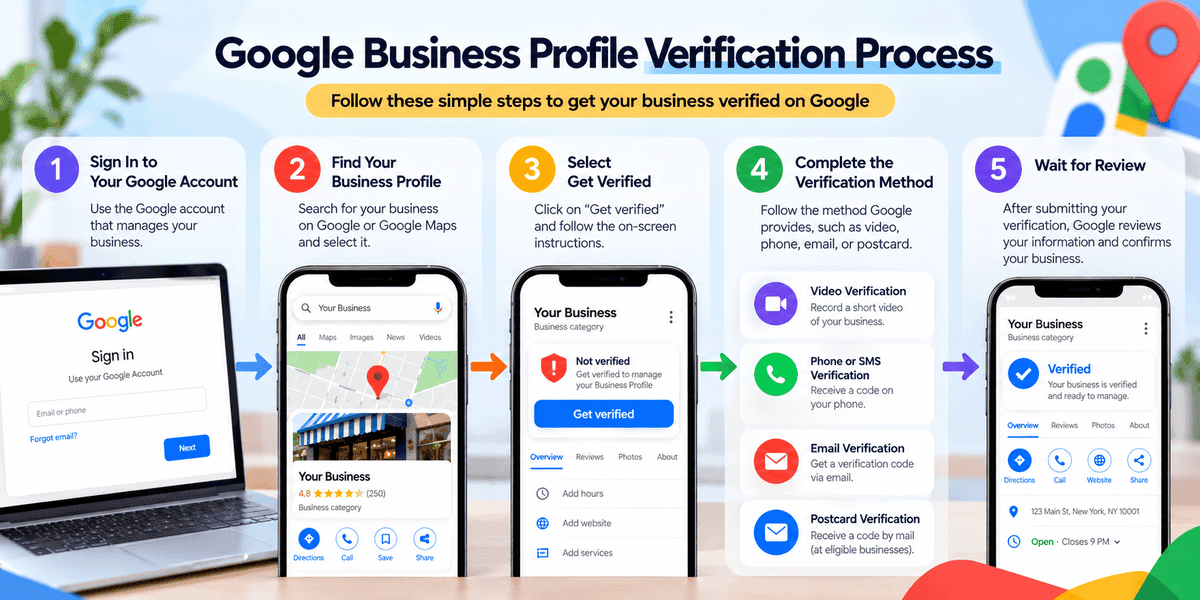
How to Verify Your Google Business Profile: Step-by-Step
Button names shift now and then, so the labels below may not match the screen exactly. The order holds.
Step 1: Sign In to the Google Account That Manages the Business
Pick the account that should own the profile for the long haul. A wrong choice here can cause ownership confusion later.
Step 2: Find or Claim the Business Profile
Search the business name and city. A profile that already exists can be claimed. If Google has no listing, the business has to be added first.
Step 3: Review the Business Information
Check the name, address, category and phone number. Changing them after requesting a postcard can invalidate the code.
Step 4: Select Get Verified
The button opens the verification flow. Google lists only the methods available for that business.
Step 5: Complete the Verification Method Google Provides
Work through the prompts for whichever method appears. Many businesses see just one option, some see several, and a few are asked to use more than one.
Step 6: Submit and Check the Status
After the final step, Google reviews the information. Watch for the confirmation email, and open the profile again to check the status. A Get verified button that comes back usually means Google could not finish verifying the business.
A point worth stressing: the method is Google's choice. The list cannot be changed, so a business cannot simply pick the one it prefers.
Google Business Profile Verification Methods Explained
MethodWhat it involvesAvailability notesPhone or SMSA code arrives by call or text and is entered on the profileIVR phone systems cannot receive the codeEmailSteps are followed from a message sent to the listed addressThe address must be usable on the verification screenPostcardA 5-digit code arrives by mailNot offered to every businessVideo recordingA live recording is uploaded from a mobile deviceRecommended by Google when the business is eligibleLive video callA video call with a Google representativeOnly within the location's business hours, and not for every businessInstant or bulkVerification happens without a codeNot universal
Video Recording Verification
Google recommends this method where it is offered. The next major section covers it in detail.
Live Video Call Verification
Calls run only during the location's business hours, and some businesses never see the option. The person calling must be on site with a device that handles video, ready to point the camera at outside signs, equipment and proof of managing the place, such as keys or staff-only areas.
Phone or SMS Verification
Pick the phone option, take the call or open the text, and type the code into the profile. Google itself never asks for the code. Sharing it is a bad idea, even with people who help manage the profile.
Email Verification
Pick email and follow the message that arrives. The address has to be one that can be opened from the verification screen.
Postcard Verification
Most codes show up within 14 days. After 30 days they expire. Edit the name, address or category after requesting a postcard and the code may stop working. Ask for a second card and the first one is cancelled, which drags the whole process out.
Instant Verification and Bulk Verification
Some profiles are verified at once when the website is verified with Google Search Console. Bulk verification suits businesses with many locations. Neither applies to every business, so neither should be counted on.
How to Complete Google Business Profile Video Verification Successfully
Google's help page on verification with a video recording sets the rules.
Video Verification Requirements to Follow
- At least 30 seconds long
- One continuous, unedited recording with no breaks
- Recorded live, not pre-recorded or filmed offline and uploaded later
- Recorded and uploaded from a mobile device through the Business Profile
- No sensitive details, such as bank, tax or ID numbers, and no other people's faces
What to Show for a Storefront or Hybrid Business
A restaurant makes a good example. Picture the clip opening on the sidewalk: a street sign, a building number, the shop next door. Then the front door, where permanent signage carries the name exactly as it appears on the profile. Inside, the camera moves to something staff alone can reach, say the kitchen or the till. No permanent signage? Google says to list the business as a service-area business instead.
What to Show for a Service-Area or Home-Based Business
A plumber's case looks different. The clip opens on signs or landmarks near the business address, since a shot of empty land or an unmarked lot proves little. A home-based business can use signs and landmarks from its own street. Then come the tools, branded van or work materials, and some proof of managing the business, such as unlocking the branded vehicle or showing a permit, invoice or utility bill that matches the profile name.
EvidenceStorefront or hybridService-area or home-basedLocationStreet signs, building numbers, landmarksSigns or landmarks at or near the addressExistenceStorefront or signage showing the business nameTools, equipment, products or branded apparelManagementAreas only staff can accessPerforming a service, or unlocking a branded van
How to Record and Submit the Verification Video
- On a mobile device, open the Business Profile.
- Tap Get verified, then Business video, then Next.
- Read the on-screen requirements, then grant location, camera and microphone access when asked.
- Hit Start recording, film the walk-through, and stop.
- Watch it back, retry if something is missing, then tap Upload video.
How Long Does Google Business Profile Verification Take?
Timing depends on the method. Google says reviews can take up to 5 business days and sometimes longer, and that applies to video submissions as well. Postcards usually arrive within 14 days. Google gives no fixed time for phone, text or email codes. While waiting, the business details should stay as they are, since edits can interrupt the process.
No fixed completion date is promised anywhere in Google's guidance, and none should be assumed.
Google Business Profile Verification Problems and How to Fix Them
ProblemPossible causeNext stepVideo rejectedRequired items missing, or the clip was not continuousTap Review issues and record a new video with everything from the first one plus what was missingVideo will not uploadNot recorded live on a mobile device through the profileRecord again inside the Business Profile on mobileCode not receivedPostcard still in transit, wrong contact detail, or an IVR phone systemCheck the details; wait up to 14 days for a postcardCode not workingExpired (30 days), or details edited after requestingStart again and avoid editsNo more ways to verifyOptions depend on business type, information, region or hoursTry each option listed, then contact Google supportSomeone else verified the businessAnother account manages the profileLook for an ownership request option in the profile flow, then contact supportStill pendingReview can take 5 business days or moreWait, then contact supportProfile suspendedA guideline problem, which is not a verification failureUse Google's suspension or reinstatement process
Video Verification Rejected or Not Uploading
Google explains why a video was rejected. A fresh recording has to include everything from the first video plus the missing items.
Verification Code Not Received or Not Working
Postcards take the longest. Give them the full 14 days and skip the second request, which would cancel the first code.
"No More Ways to Verify" Message
No menu of methods exists to switch to, because Google picks them. Its help page suggests trying each option shown and, if that fails, contacting Google Business Profile Support.
Someone Else Has Already Verified the Business
A previous owner, a former employee or an agency may still hold the profile. Past Google Accounts are worth a look first. Where the profile offers a way to request ownership, take it. Otherwise support is the next stop. Results vary.
Verification Still Pending or Taking Too Long
Wait out the review window first. Past that, contact support with the business name and the date of submission.
Business Profile Suspended or Disabled
A suspension points to a guideline problem, which is a different thing from a failed verification. Treating one as the other sends the effort down the wrong path. Support is the place to begin, though no result is promised.
Why Does Google Ask for Reverification of a Business Profile?
Re-verification can follow changes to business details, or simply a request for more information from Google. Edits made a short while earlier often explain it. Select Get verified again and walk through whatever flow appears. Being asked is not a sign of wrongdoing.
What Should You Do After Your Google Business Profile Is Verified?
Verification is the starting point, not the finish. Next come accurate hours and services, a category that fits, clear photos and replies to customer reviews. Honest review requests help too. A separate guide explains how to optimize your Google Business Profile once verification is done, including what a complete profile contains.
Frequently Asked Questions About Google Business Profile Verification
Can a Google Business Profile be verified without a postcard?
Often, yes. When Google offers another method for the business, such as phone, text, email, a video recording or a live video call, that route avoids the postcard entirely. What shows up depends on the business.
Can a Google Business Profile be verified without a storefront?
Yes. Service-area and home-based businesses that travel to customers can verify without a storefront. Video verification covers this case, with tools, vehicles and documents as evidence. A business that works only online, with no in-person service, cannot qualify.
Is Google Business Profile verification free?
No fee appears anywhere in Google's verification steps. A request for money, or for the verification code itself, is a red flag.
Can a different verification method be chosen?
No. Google sets the available methods using the business type, public information, region and hours, and they cannot be switched.
What happens if a Google Business Profile is not verified?
Without verification, the owner cannot edit business details or interact with customers through the profile.
Can multiple business locations be verified?
Yes, with one profile per location. Businesses with many locations can look into bulk verification, though Google decides who qualifies.
Final Thoughts
Most verification problems shrink once the business details are correct, the assigned method is followed and the review window is allowed to run. A case that stays stuck belongs with Google's official support channels. And verification itself is only step one: it proves a business is real and managed by the right person, then leaves the real work of building an honest, complete profile.
About the Author
Sarah JohnsonGrowth Specialist
Specializes in helping local businesses maximize online visibility and customer engagement.